
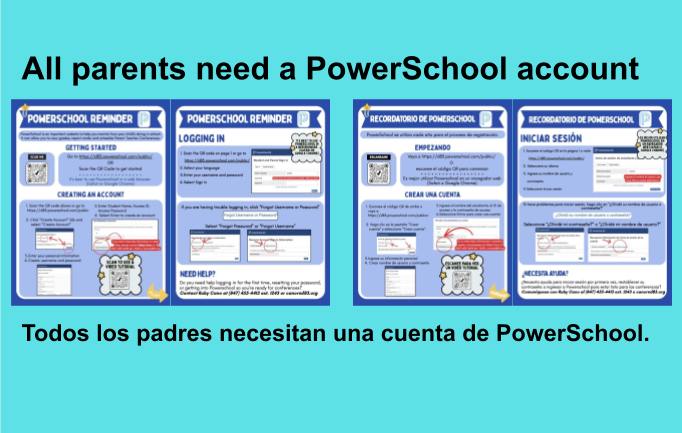
Keeping track of your child's academic journey and connecting with teachers just got easier. District 83 encourages families to utilize the PowerSchool platform to monitor grades.
Whether you are setting up your account for the first time or reviewing your child's progress, this guide provides all the necessary resources and steps to get started. [LINK]
PowerSchool: Monitor Academic Progress
PowerSchool is the district's primary tool for families to view grades and report cards. It acts as a central hub for monitoring how your child is doing in school.
How to Get Started
Access the Portal: Visit https://d83.powerschool.com/public.
Tip: It is best to access PowerSchool using a web browser like Safari or Google Chrome rather than the app.
Create an Account:
Click the "Create Account" tab and select the "Create Account" button.
Enter your personal information and create a unique username and password.
Link Your Student: You will need to enter your child's Name, Access ID, and Access Password.
Note: If you do not have your Access ID or Password, please contact the school office.
Sign In: Once your account is created, switch to the "Sign In" tab and log in with your new credentials.
Important: Use the username you created, not your email address.
Managing Multiple Students
If you need to add additional children to your account, sign in and select the "Account Preferences" icon in the left navigation menu.